Scriptcase 10: AI-Powered Low-Code Development
Launching June 29 · up to 15% off

Scriptcase with AI

Version 10 brings low-code development, now AI-powered.

Scriptcase AI reads your database structure, events, and libraries to work with full project context. Fix queries, generate logic, or translate your entire project into a new language, from the data dictionary to every interface label.

Works with
ChatGPT
Gemini
+ more models coming soon
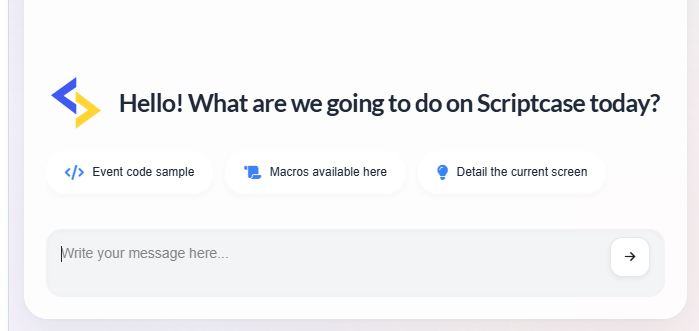
Scriptcase AI
Show the total items per order in my Grid.
</> onRecord with sc_lookup

Add this to the onRecord event of your Grid:

// onRecord$sql = "SELECT COUNT(*) FROM itens WHERE order_id={order_id}"; sc_lookup(dataset, $sql); if (isset($dataset[0][0])) {  {itens_qty} = $dataset[0][0];}
| Write your message here...
Discover what's new

What's new in Scriptcase 10

A major leap forward for low-code development, powered by AI.

17:34 Watch the overview All the AI features in one video
AI

AI Code Assistant

Ask in plain language. The assistant understands your project and writes code directly where you need it. No copy-paste, no context switching.

Works with full context of your project:
DB Structure Events & Code Libraries Project Settings
  • Writes directly in any code editor
  • Follow-up suggestions after each answer
  • Docs & action recommendations
  • Full conversation history
SQL PHP JavaScript HTML + any editor
SQL

Turn a SELECT into a Grid app

Edit any code directly in the assistant chat. From a SELECT over one or more tables, it builds a full Grid application, right there in the conversation.

UX

Keep the conversation going

After every answer, the assistant suggests the next natural step so you never lose momentum.

Keep the conversation going
MEMORY

Persistent memory

Along with your full conversation history, the assistant keeps a persistent memory of relevant project details and reuses them across chats, so you don't have to repeat yourself.

Remembered across chats
Database schema & connections Naming & coding standards Business rules you explained Project structure & apps
Recent chats
  • Total items per order (Grid) 2h ago
  • Login validation fix Yesterday
  • Dashboard chart SQL query 3 days ago
  • PDF report layout adjustments Last week
SUGGESTIONS

Tuned to your current screen

The assistant recognizes the screen you're working on and offers quick pills to explain it, show usage examples, or write the code you need, right in the conversation.

Tuned to your current screen
How it works

Your AI key. Your rules.

Scriptcase AI connects directly to your chosen model. Configure once and control exactly what the AI can access, per project.

API

Compatible AI models

Bring your own OpenAI or Google Gemini API key. Requests go directly to the provider, with no intermediary in between.

ChatGPT
Gemini
API Key sk-••••••••••••••••••••••••7f2a Saved
Knowledge base How to create and set up your API key
PERMISSIONS

You control what AI can read

Decide whether the assistant can access your database schema, the code in your app events, or both. It reads the structure (tables, columns, relationships), never your actual data. Configurable per project.

  • Database schema
  • Code in app events
  • Internal and external libraries
CONTEXT

A custom context for every project

Set a system prompt for each project so the AI always works with your business rules, conventions, and requirements in mind.

Project context 247 / 2000
This is a healthcare management system used by clinics across Brazil. Follow LGPD compliance rules in all code suggestions. Use Portuguese variable names when writing PHP events. The main database uses MySQL 8.0 and follows snake_case naming conventions...
AI Translations

Add a language. AI handles the rest.

Scriptcase AI reads your entire project and translates everything automatically: data dictionary, labels, and interface strings.

Productivity

One table. All related apps.

Select a table and Scriptcase detects its relationships, generating integrated Forms and Grids, already connected, with no manual configuration.

9:01 Watch the overview All the additional apps in one video
  1. 01

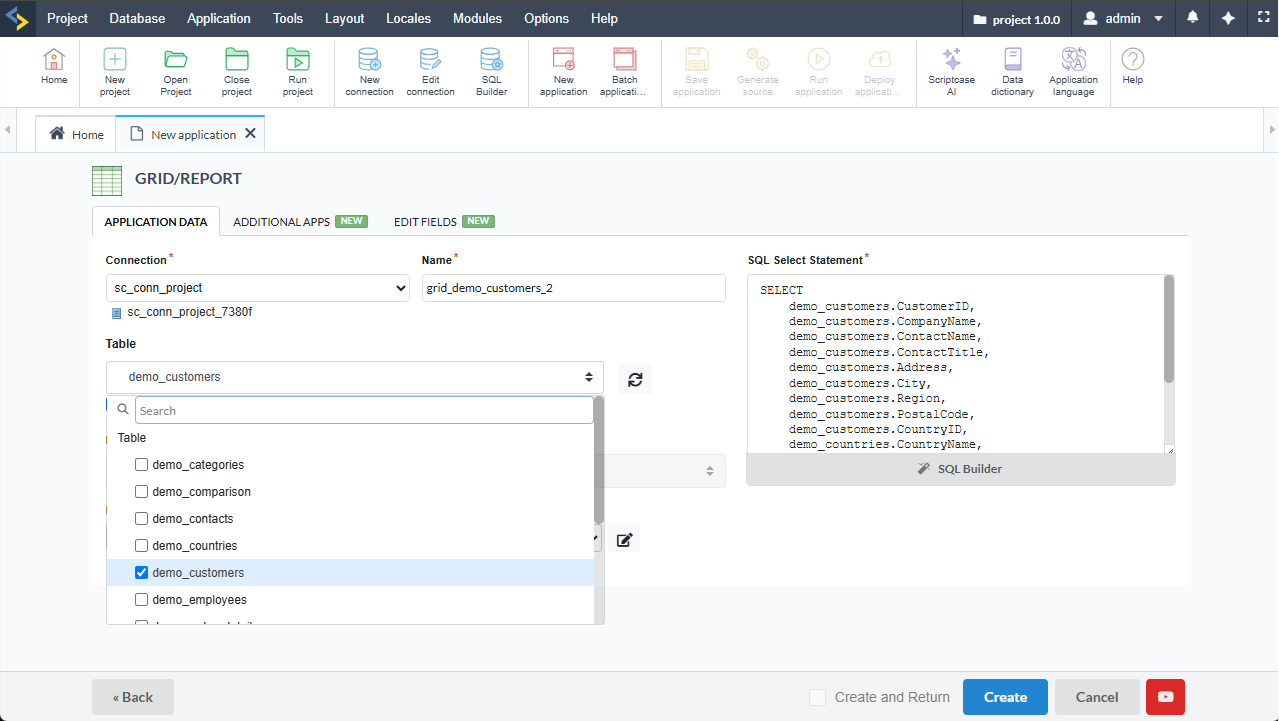
    Select the table & enable Additional Apps

    Choose the main table and turn on the Additional Apps tab to get started.

    Selecting the main table and enabling the Additional Apps tab in Scriptcase
  2. 02

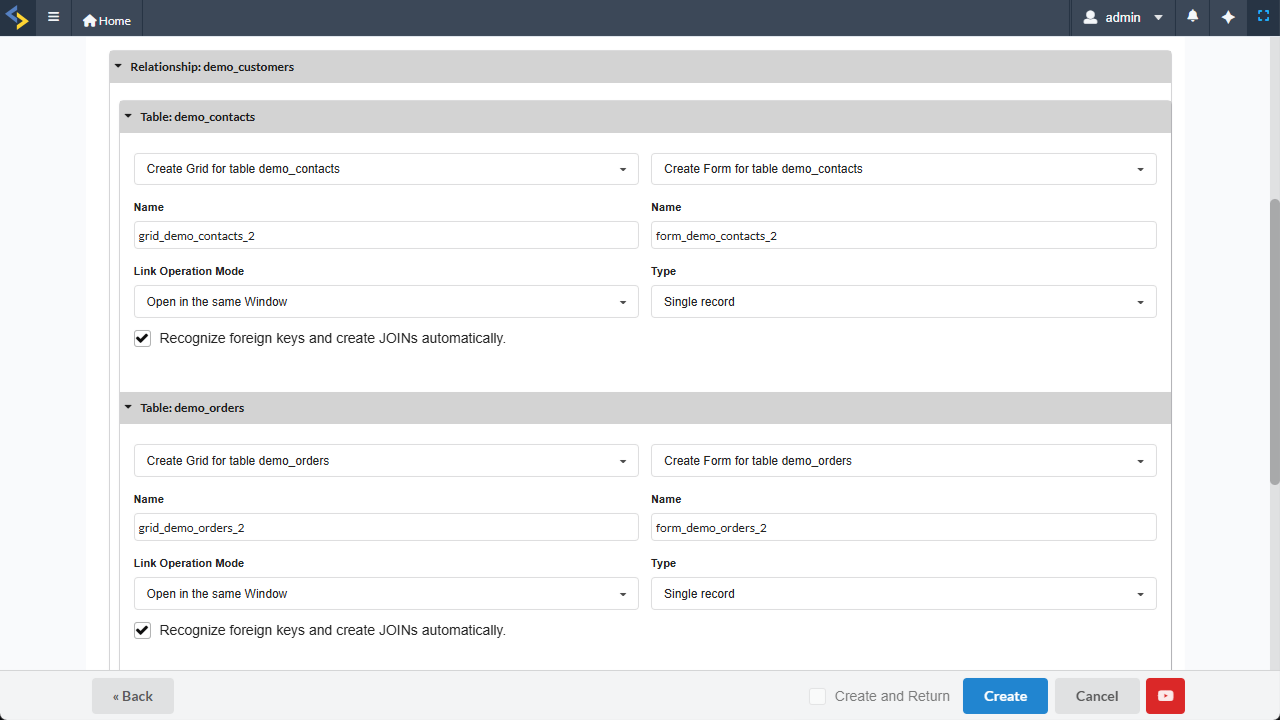
    Configure the additional applications

    For each related table, choose the apps to generate (Grids and Forms), set their names and how they open. Scriptcase recognizes the foreign keys and builds the JOINs automatically.

    Configuring additional applications in Scriptcase
  3. 03

    Apps generated and ready to use

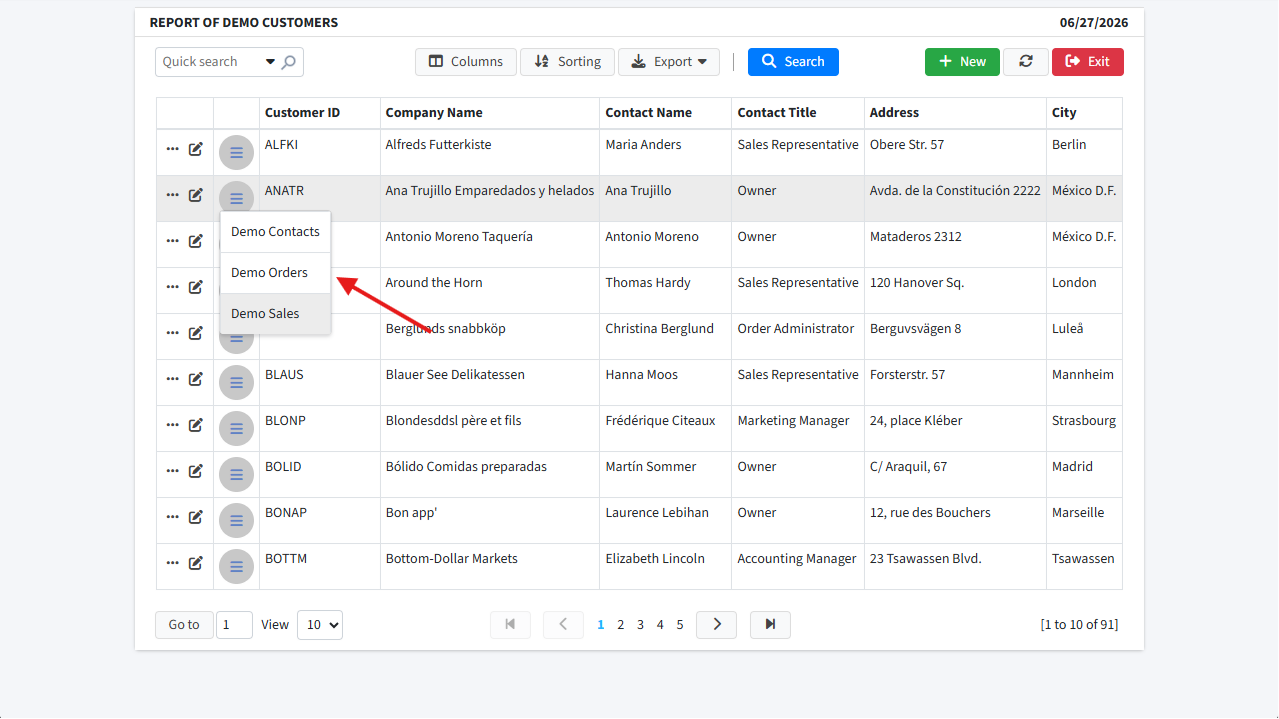
    Forms and Grids are created, connected, and ready to use, with no extra setup. A new Font Awesome field type links the applications, and when more than one additional app is created, a dropdown lets the user choose which one to open.

    Additional applications created and generated automatically in Scriptcase

FK relationships detected automatically

Forms and Grids generated and linked

No global variables to configure

AUTO JOIN

No more lookup configuration.

When enabled, Scriptcase reads the table structure, detects foreign key columns and automatically rewrites the Grid's SELECT, bringing descriptions from related tables directly into your app. No manual lookup setup required.

It also fixes a classic lookup limitation: sorting by a lookup field orders by the key column, not by the description shown on screen, so the order may not match the data. With Auto Join the description is part of the query, so sorting always reflects what users see.

Without Auto Join
#customer_idamount
10014$1,200
100211$850
10037$2,400
With Auto Join
#customeramount
1001Acme Corp$1,200
1002Tech Ltd$850
1003Startup XY$2,400
FK columns detected from the table structure SELECT rewritten automatically with the right JOINs Descriptions appear in the Grid instead of raw IDs Sorting follows the description, not the raw key
Also new

More improvements

Smaller updates that make everyday development smoother.

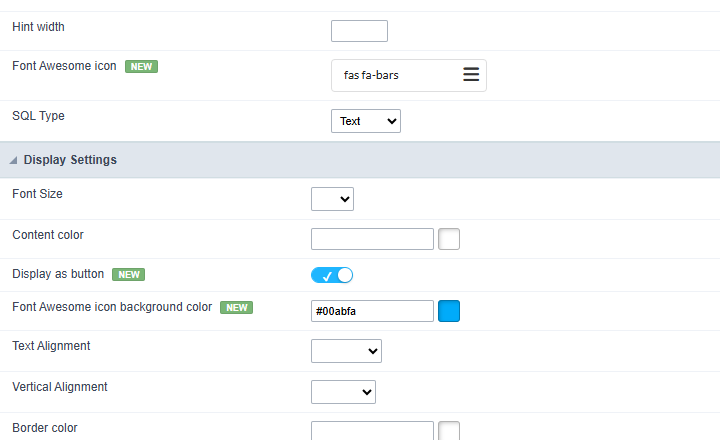
New Font Awesome field type

Font Awesome field settings in Scriptcase
  • Font Awesome Icon: Choose the Font Awesome icon to show in the field.
  • Display as button: When enabled, renders the icon inside a circular button.
  • Background color: Sets the background color of the circular button.

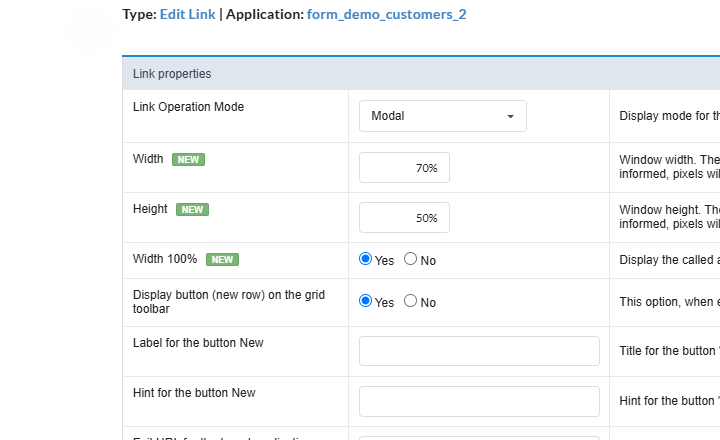
More flexible modal links

Modal link width and height settings in Scriptcase
  • Width and Height in % or px: Define both in percentages or pixels for more fluid, responsive screens.
  • Width 100%: Forces the linked app to fill the whole screen, removing extra spacing.

Frequently Asked Questions

Ready to build smarter?

Join thousands of developers using Scriptcase to ship enterprise apps with AI assistance.