SQL Builder
 View video
View video
This tool helps the construction of Queries in a Wizard form. These queries can be saved for later use. Any SQL can run directly on the Run tab that is displayed after the database is chosen.
Database
Firstly you need to select the connection(Database) that you want to use. It is important that you must have a connection created in the project for it to be listed in SQL Builder.
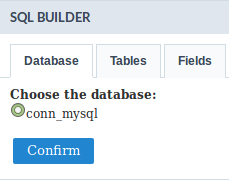
After selecting the desired connection, click the Confirm button to use this connection.
WARNING: The SQL Builder does not parse SQL, only receives the SQL Query informed by the user and executes it. So, if you use PDO drivers, only these are enabled: PDO_DBLIB, PDO_MYSQL, PDO_PGSQL, PDO_SQLITE. If you use a driver other than one of these listed, you may be returned with the “BAD GETCOLUMNMETA()” error in the column titles.
Go to PHP page for more information.
Tables
All the existing tables in the database are listed in the Tables tab. You can select various tables, although they need to have a relationship between them.
Select the desired tables to create the query.
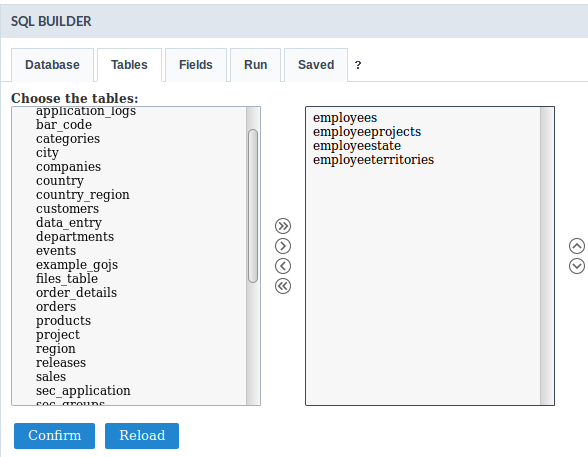
After selecting the tables, click the Confirm button to use this connection.
Fields
Select the fields that will be part of the query. The fields can be ordered alphabetically (Ascendant) or in the order that they were created (Default)
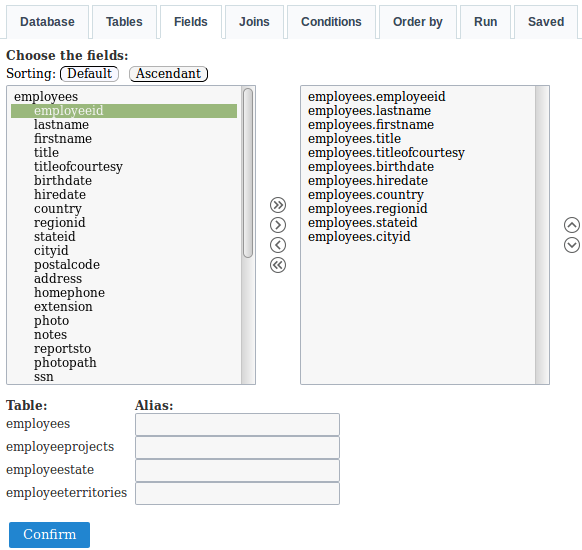
It is possible to create an alias for the selected tables, this option can be found below the field list were also all the selected tables will be listed.
Joins
Defining the fields, it is necessary to configure the join. To do that, you need to select the tables that have a relationship, next you will select the type of join that will be used in the field Type then click on Add.
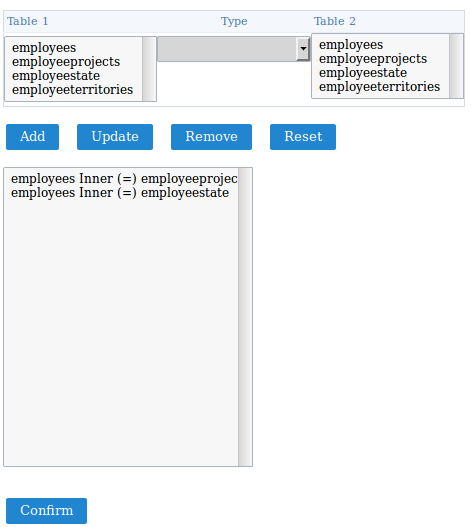
After clicking on add, click on Confirm, so that you can inform the fields that do the relationship between the tables.
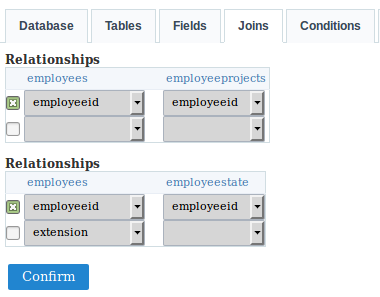
Defining the fields, you will be redirected to the run tab.
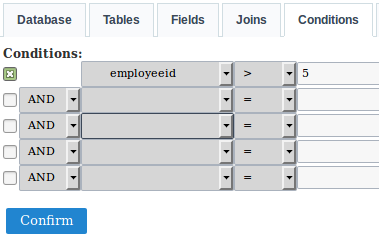
To add a “WHERE” clause to the SQL, click on the tab Conditions
Conditions
You can add the “WHERE” clauses where the query was created.
Order By
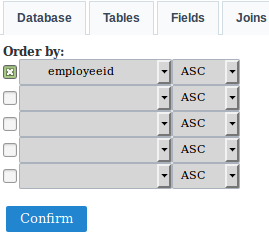
Define the sorting of the query result display.
Run
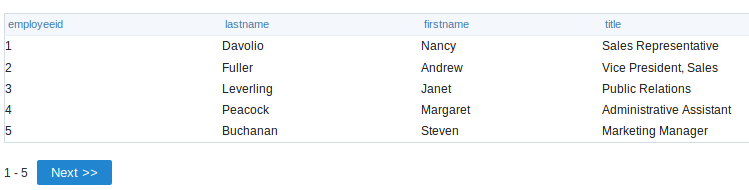
This is where you can run the SQL commands. The result of the query configuration wizard will be displayed on this tab. You can run DML (Data Manipulation Language) commands here and also DDL (Definition Data Language) commands.
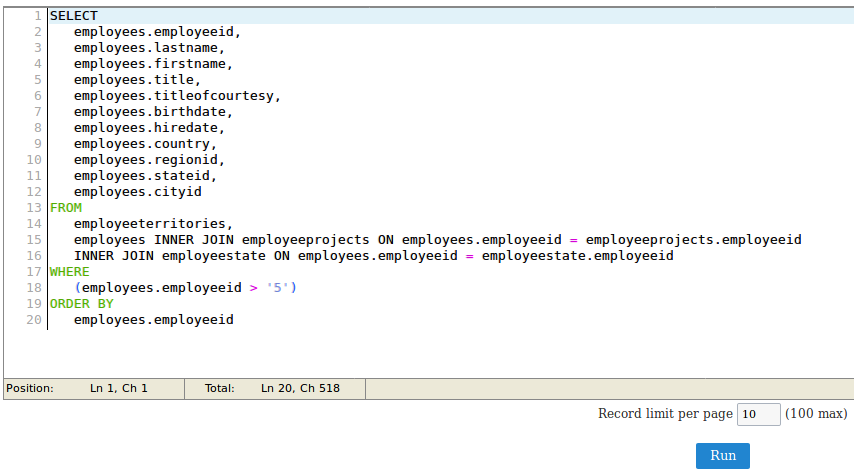
You can define a total of records per page.
Saved
To save the created commands, just inform the name of the query and click on the save button. The commands that are already, will be listed.