Data Dictionary
 View video
View video
In this article, you learn how to use the Data Dictionary. It is a tool used to assist you with the application translation as well as to standardize the database fields. With the data dictionary, you can create a data repository and associate it to one or more tables.
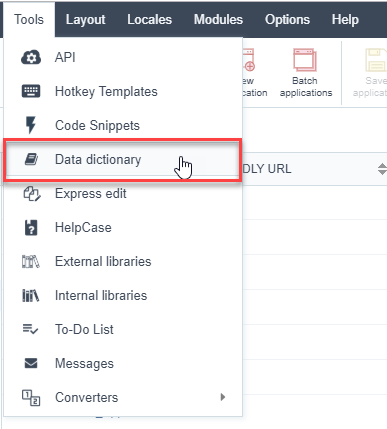
You can access the data dictionary from the main menu Tools > Data Dictionary.
Creating a Data Dictionary
Inform the necessary data for the creation of the repository. The files with an asterisk are required.
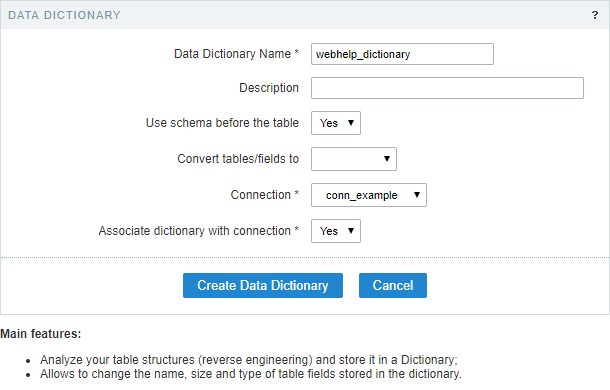
The option Associate dictionary with connection, define a connection to associate with the repository data, allowing that the new applications, created using the tables associated with the repository, have indexes in the language files with the field labels from the tables.
Add tables to the Data Repository
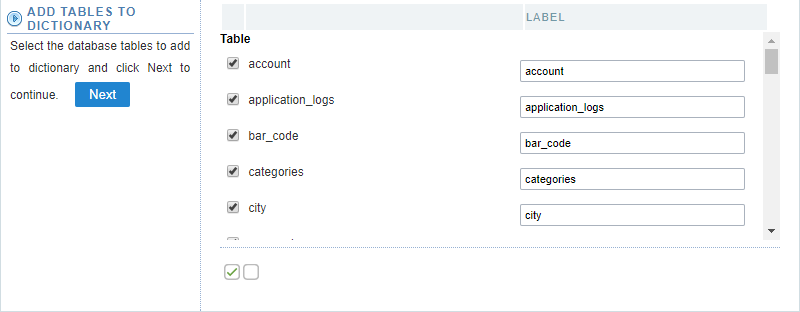
Here we need to select the tables to add to the repository. After selecting the desired tables, click on next.
You should choose whether or not to create the indexes (langs) on the field labels of the existing applications of the project.
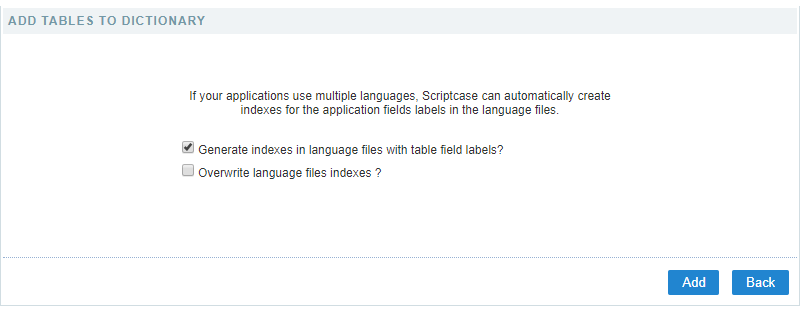
- Generate the indexes in the language files of the table fields - On this option, you replace the field labels with the indexes that can be edited in one place when accessing Locales > Application Language.
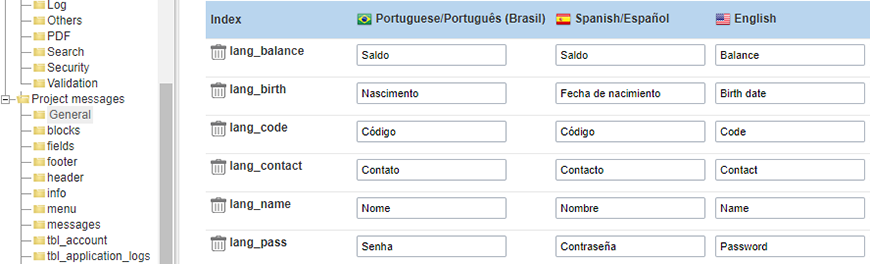
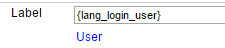
An example of an index created by the Data Dictionary:
- Overwriting the indexes in the language files - On this option, you replace the existing indexes with new data based on the database.
Next, we can view a list of tables added to the repository data, where we can view a couple of information about these tables, as the name of the table of the database and the index created for each table, on the label field, and the version of the Data Dictionary of each field.
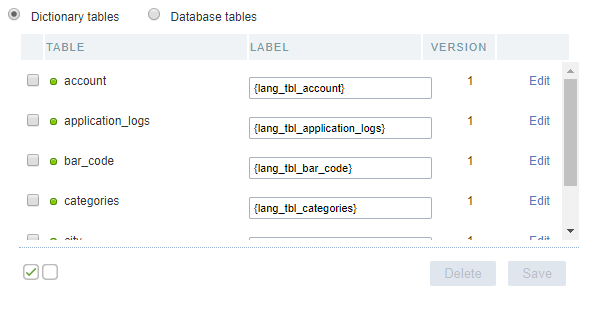
The tables that not added can be viewed when accessing the Dictionary tables; the process of including these tables to the repository of data is the same.
When doing a modification to the structure of the database tables, the same should be updated using the option SYNCHRONIZE DICTIONARY.
Table status
Next to the name of the tables, there’s an icon that indicates the status of the tables.
- Green - Indicates that the tables and the repository are updated.
- Red - Indicates that the tables don’t exist in the database. In this case, you should delete it from the repository.
- Yellow - Indicates that the tables are not updated because of some modification in its structure. In these cases, you should click o the link edit referring to the table and click on update, so that the data of the repository could update.
Edit Tables
You can find it on the right side, in the list of tables.

This option allows you to edit the fields from the chosen table, like the data types and the indexes created by the repository, for example.
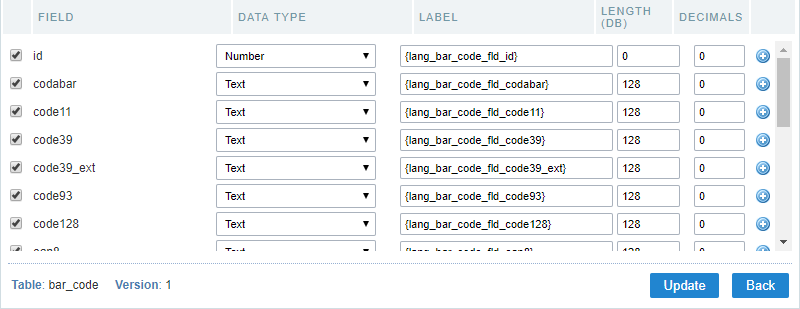
Other properties of the fields can be accessed when clicking the plus icon on the right side of the field list.

Syncing Dictionary
This option is activated when selecting one or more tables; on this option, you update the data dictionary according to the database.
When synchronizing the tables, a yellow icon is displayed on the side of the updated tables, See how to remove it. In case of changing the structure of the tables, then you need to re-sync them again.
Synchronizing Applications
After doing all the desired configurations on the tables and fields, you need to sync the changes to the existing applications, so that the changes can be applied.
First, you need to select the tables that are synchronized.
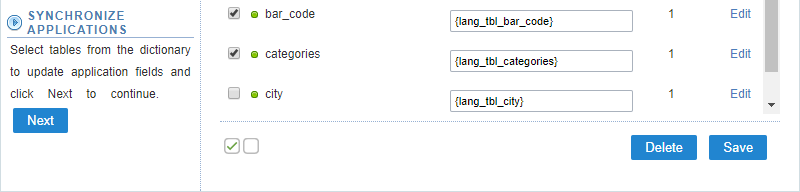
Next, you can define what happens and which applications suffer the modifications — a list of applications that received the changes based on the tables that they used.
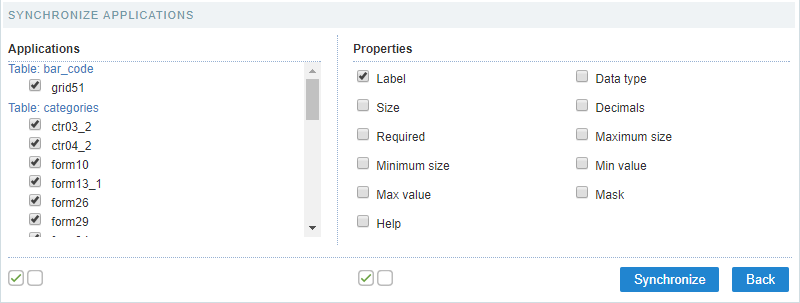
When clicking on synchronizing, when finishing the process, you see a summary of the procedure done.
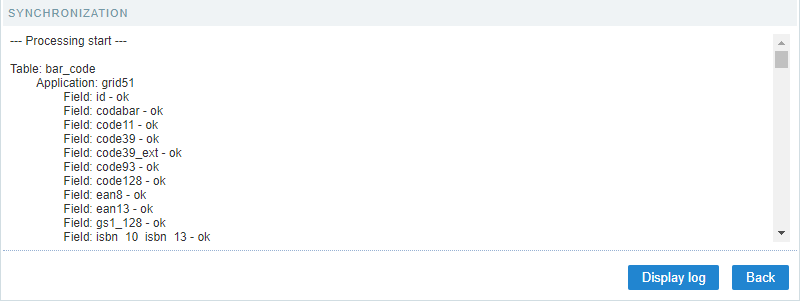
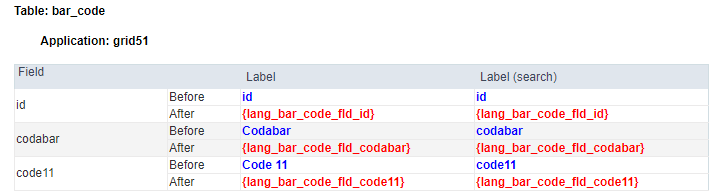
Clicking to show the log, you can view all the modifications done, where it displays the previous state (blue) and the result of the modification (red)
Clicking on Back You return to the Page of the definition of modifications.
To finish the process, click on close.
Editing the Data Dictionary Properties
On the top part, we can view the dictionary properties, informed when created.
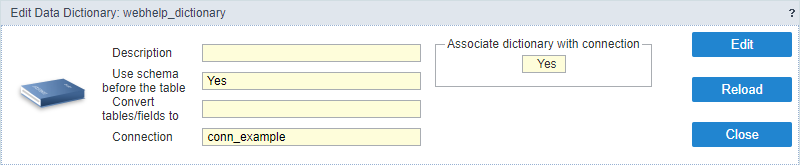
You have three possible actions, Edit, Reload, and Close.
- Edit - Allows you to change the properties data of the dictionary, like the modification of the connection used to associated with a repository, for example.
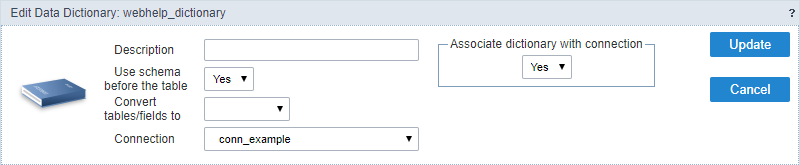
- Reload - Updates all the information of the Data Dictionary, like the status of the table, for example.
- Close - Closes the current data dictionary, and you go to the list of the dictionary.
Editing Indexes
To edit the created indexes in the repository, access Locales > Application Language.
On the side panel, it is possible to view all the lang from ScriptCase. The langs referring to the data dictionary is in the folder Project Messages.