
Scriptcase AI
Scriptcase AI is an integrated assistant that uses artificial intelligence models to support developers in creating and maintaining their projects.
Because it has a native integration, Scriptcase AI can access project information, table structures, application event code, and tool resources, providing direct support in the development and use of Scriptcase. These permissions must be granted on the configuration screen.
Scriptcase AI Configuration
To use Scriptcase AI, you must have an account with the selected provider.
- ChatGPT - https://auth.openai.com/log-in
- Gemini - https://accounts.google.com
See more details about billing and how to generate the API key
To configure it, go to Tools > Scriptcase AI.
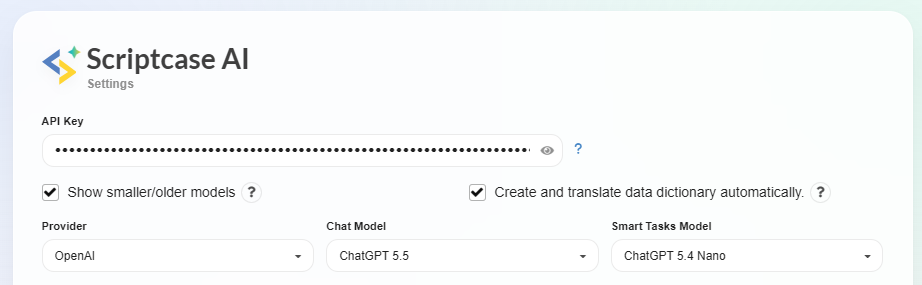
API Key
Enter the API key of the AI provider that will be used by Scriptcase AI. This key allows Scriptcase to communicate with the selected provider to process the requests made by the user.
Refer to the documentation for the selected provider:
- OpenAI (ChatGPT): see how to generate the ChatGPT API key.
- Google Gemini: see how to generate the Gemini API key.
Show smaller/older models
Enables the display of smaller or older models from the selected provider.
When this option is enabled, the Chat model and Smart tasks model fields may display additional models, which can be used according to the needs of the project.
Create and translate data dictionary automatically
Enables the automatic creation of the data dictionary and the language files used to translate field labels during project creation.
With this option enabled, Scriptcase AI can help generate field descriptions and translations, reducing manual work during the initial project configuration.
See the Creating a new project page for more information.
Provider
Defines the AI provider that will be used by Scriptcase AI to process the requests sent by the user.
The available providers are:
- OpenAI (GPT)
- Google Gemini
Chat model
Defines the AI model used in conversations with Scriptcase AI.
This model will be used to answer questions, analyze project information, and assist the user during development.
For this option, we recommend using the most up-to-date models from the selected provider, ensuring more complete and contextualized responses during conversations.
Smart tasks model
Defines the AI model used to execute Scriptcase Smart tasks.
This model will be used in automatic or assisted resources that perform specific tasks within the tool.
For smart tasks, we recommend using smaller models when available. In general, these models may offer lower cost and faster responses, making them suitable for simple, direct operations that do not require complex analysis.
Project access permissions
In the project list, define the access permissions of Scriptcase AI for each project.
Even without project access permissions, Scriptcase AI can still help with general questions about Scriptcase, such as the use of macros, events, and applications. It can also help with code and SQL, as long as the user manually provides the code, SQL query, or table structure they want to analyze in the chat.
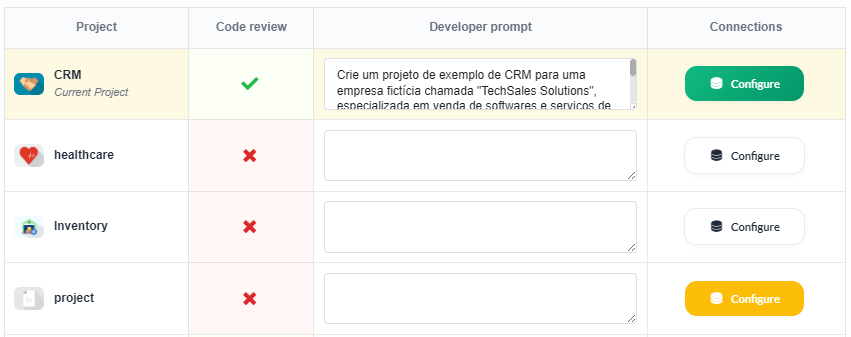
These settings are available only to Scriptcase administrators.
Project
Displays the existing projects in the Scriptcase environment, allowing you to define the access permissions of Scriptcase AI for each project.
Code analysis
Defines whether Scriptcase AI will be able to automatically access existing code in events, methods, and buttons of the project applications.
With this option enabled, the assistant will be able to analyze code to help with tasks such as explaining how existing snippets work, adding code to events, identifying possible errors, and suggesting syntax or logic corrections.
Note: If this option remains disabled, Scriptcase AI can still help with code, as long as the content is manually provided in the chat.
Developer prompt
Allows you to enter rules, context, and standards that Scriptcase AI should consider when assisting with the project.
This field can be used to guide the assistant’s responses, suggestions, and generated code according to the needs of the project. For example, you can enter the system context, variable naming standards, development rules, and preferences for how responses should be presented.
Connections
Defines whether Scriptcase AI will be able to access the table structures of the connections configured in the project, such as table names, fields, and data types.
With this option enabled, the assistant will be able to generate suggestions, analyses, and SQL commands that are better aligned with the database of the enabled connections.
Note: If this option remains disabled, Scriptcase AI can still help with SQL commands and database structures, as long as the information is manually entered in the chat.
Connection list
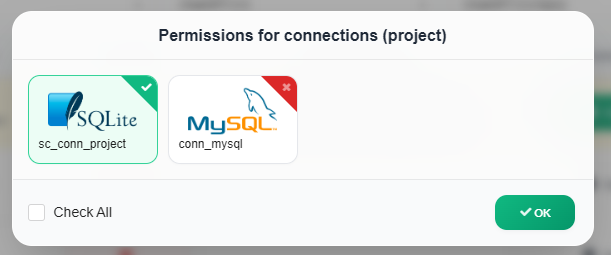
When clicking the connection icon, a modal will be displayed with the list of existing connections in the project. Enable the connections that can be accessed by Scriptcase AI.
The icon color indicates the access status of the project connections.
- Gray icon - No project connection is enabled for access by Scriptcase AI.
- Yellow icon - Some project connections are enabled for access by Scriptcase AI.
- Green icon - All project connections are enabled for access by Scriptcase AI.
AI configuration validation
After entering the API, selecting the AI models, and configuring the projects that will be able to use the feature, use the buttons available at the bottom of the page, after the project list, to validate, save, or reset the configured settings.

In the Test configuration and save field, you can validate the entered data and then save the AI settings. For the changes to be saved, the required fields must be filled in with valid values.
The Test connection button only allows you to check whether the connection with the AI is working correctly, without saving the changes made to the configuration.
The Reset configuration button clears the data configured for the AI, such as API information and other related settings. This is the recommended way to remove the values from the fields, because when saving the configuration, the system requires the entered data to be valid.
You can also define access to the AI chat and AI settings through the administration menu, controlling which users can use or configure these features.
Using Scriptcase AI
Scriptcase AI helps create and maintain applications in Scriptcase. Through the assisted chat, you can request help with code, platform settings, Scriptcase resources, and documentation information. Depending on the request, the AI can also insert the generated code directly into the application event.
In addition to the chat, Scriptcase AI offers smart tasks to automate specific platform processes, such as application translation, automatic data dictionary creation, and data dictionary translation.
Even without project access permissions, the chat can be used as a regular conversation with the AI. In this case, Scriptcase AI will not have access to the application’s internal information, such as tables, fields, events, or project code.
Assisted chat
To access the chat, click the button located in the upper-right corner of the interface.

The assisted chat allows you to interact with Scriptcase AI while using the platform. When authorized, the AI can use the context of the project, applications, open events, connections, and database structures to provide responses that are more aligned with the development environment.
Among the resources available in the chat are:
- Analyze code from open events, buttons, and methods;
- Generate code using Scriptcase macros;
- Create business rules;
- Explain how to use Scriptcase resources.
Chat usage tips
- Make direct requests about the content open in the editor: ask for actions such as “correct the logic of this event” or “optimize this SQL query”. When code analysis is enabled, it is not necessary to copy and paste the code into the chat, as the assistant will be able to access the open content.
- Use the project context: keep the project context configured in Scriptcase AI so that responses consider general system information, such as the purpose of the application, business rules, and standards used in development.
- Take advantage of access to table structures: when the connection permission is enabled, you can request code or queries based on the project tables, such as “create a validation using the fields from the orders table”.
- Use AI for repetitive tasks: request the creation of validations, date and time formatting, business rules, or code snippets that can reduce manual work during development.
- Review and test the generated results: before applying suggestions in production, validate the code, check the business rules, and test the application’s behavior.
Chat navigation

The Scriptcase AI conversation screen allows you to interact with the AI, access previous conversations, and open the feature settings.
At the top of the screen, the following chat navigation options are available:
- Configuration: represented by the gear icon, opens the Scriptcase AI configuration screen. This option is displayed only in registered Scriptcase installations.
- Current conversation: displays the ongoing conversation and allows you to send new messages to the AI.
- History: displays previous conversations, organized in chronological order.
Smart tasks
Smart tasks use AI models to automate specific operations in Scriptcase.
Currently, the feature can be used for:
- Automatic application translation;
- Automatic data dictionary creation;
- Automatic data dictionary translation.
Because they are more specific and automated operations, we recommend using smaller and faster models when available. In general, these models may offer lower cost and faster responses during task processing.